Here are some tips on Squarespace Project Pages (Portfolio Pages) in Squarespace 7.1 version.
Remove Pagination Title, Keep Arrows

Add to Home > Design > Custom CSS
/* remove pagination title */
.item-pagination[data-collection-type^="portfolio"] .pagination-title-wrapper {
    display: none;
}
Remove Pagination Title, Add Previous/Next
Add to Design > Custom CSS
.item-pagination[data-collection-type^="portfolio"] h2.item-pagination-title {
    display: none;
}
.item-pagination[data-collection-type^="portfolio"] .item-pagination-prev-next {
    display: block !important;
}
Change Pagination Title Size (Mobile)
Add to Design > Custom CSS
@media screen and (max-width:767px) {
h2.item-pagination-title {
    font-size: 20px !important;
}
}
Change Pagination Arrows size
Add to Design > Custom CSS
.item-pagination-link .item-pagination-icon svg {
    width: 10px !important;
}
Add Project Links under Pagination

- Edit Site Footer > Add a Text Block > Insert text links > Enter project links
- Contact me with site url. I will give the code (Each site needs different code)
Add a Button under Pagination
Add to Settings > Advanced > Code Injection > Header
<script src="https://ajax.googleapis.com/ajax/libs/jquery/3.5.1/jquery.min.js"></script>
<script>
jQuery(document).ready(function($) {
   $('<div class="sqs-block-button button-block"><div class="sqs-block-button-container--center"><a href="https://beaverhero.com" class="sqs-block-button-element--small sqs-block-button-element">BACK TO ALL PROJECTS</a></div></div>').insertAfter('.item-pagination[data-collection-type^="portfolio"]');
 });
</script>
Pagination Custom Font
@font-face {
font-family: 'font-name';
src: url(paste font file url here);
}
h2.item-pagination-title {
    font-family: 'font-name' !important;
}
Remove Draft Project on Preview/Live Mode
First, add this code to Design > Custom CSS
/* Hide Draft Portfolio */
div.portfolio-grid-basic .grid-item[href*="draft"] {
    display: none;
}
a.item-pagination-link[href*="draft"] {
    display: none;
}
Next, Edit Project >> Add this into URL: draft
Above code will hide all projects whose urls contain text “draft” in portfolio page
Show Portfolio Title over Image on Hover
a.grid-item {
    position: relative;
}
.portfolio-text {
    position: absolute !important;
    top: 50%;
    left: 50%;
    width: 100%;
    transform: translate(-50%,-50%);
    text-align: center;
    z-index: 999;
    margin-top: 0 !important;
    transition: all 0.3s;
    opacity: 0;
}
a.grid-item:hover .portfolio-text {
    opacity: 1;
}
Individual Projects Password
Squarespace doesn’t support this, So the idea here is
- When users clicking on Project(suppose A) on Portfolio List Page > Redirect it to a custom page (suppose B)
- Set password for this page (B)
- Add a redirect code on B to original individual project url (A)
- So, when users clicking on Project (A) on Portfolio List page > It will open a custom page (B) with password field > When users enter a correct password > Redirect users to original individual project (A)
If you follow below steps but it doesn’t work, just send me an email with your site url. I will help.
Step 1. To change Project url to custom url
Add this code to Portfolio Page Header (or Code Injection Footer)
<script src="https://ajax.googleapis.com/ajax/libs/jquery/3.6.1/jquery.min.js"></script>
<script>
$(document).ready(function() {
    $('a[href="/work/flex-power-tools"]').attr('href','tuanphan.squarespace.com/new-page');
  });
</script>
with
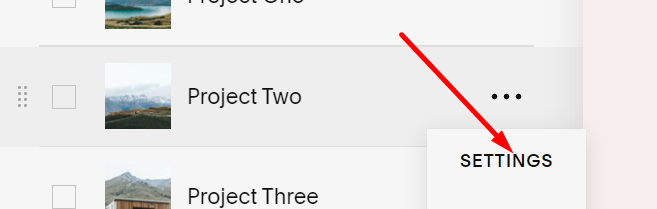
a[href=”/work/flex-power-tools”] is Individual Project URL. You can click on 3 dots > Settings > URL Slug
tuanphan.squarespace.com/new-page is custom page url
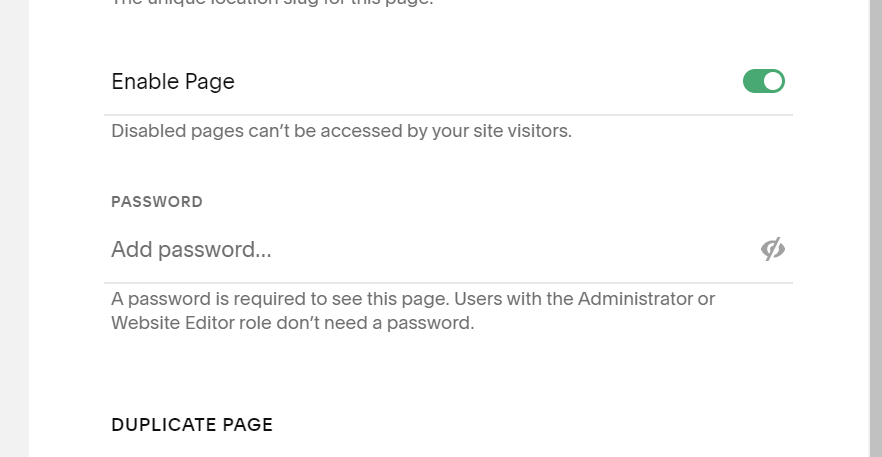
Step 2. Setup Password on custom page
Step 3. Adding a redirect code on custom page
Add this code to Page Header
<script>
window.location.href = "https://tuanphan.squarespace.com/work/flex-power-tools";
</script>
with https://tuanphan.squarespace.com/work/flex-power-tools is individual project url
Featured Image: Pixabay.com