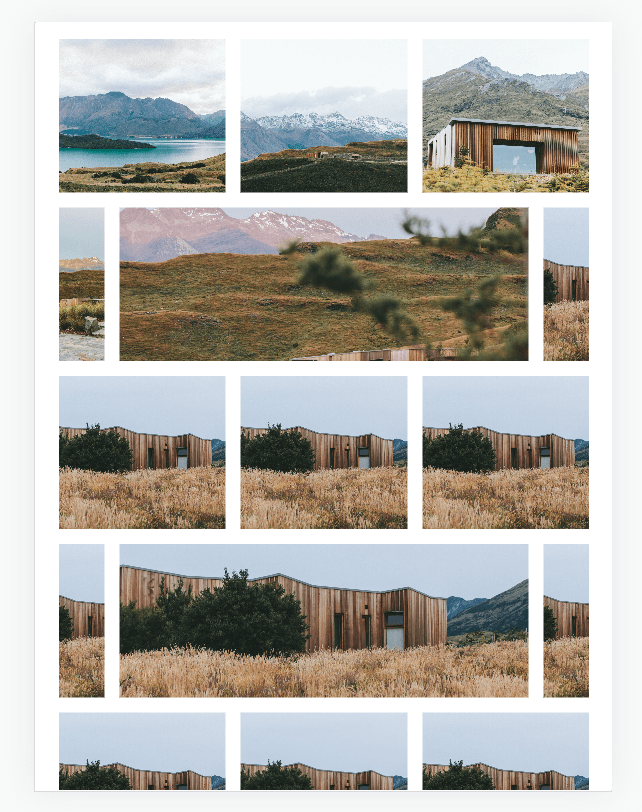
How to
#1. First you need to set Gallery Section: Grid to 9 columns. If you can’t set 9, just set 6 columns
#2. Next, use this code to Custom CSS box
div.gallery-grid-wrapper {
   grid-template-columns: repeat(9,minmax(0,1fr)) !important;
   grid-template-rows: repeat(10,minmax(0,0.5fr)) !important;
}
.gallery-grid-item-wrapper {
    padding-bottom: 0 !important;
    height: 100%;
}
.gallery-grid-item img {
    position: static !important;
}
figure.gallery-grid-item:nth-child(6n - 5)  {
    grid-column: ~"1 / 4" !important;
}
figure.gallery-grid-item:nth-child(6n - 4)  {
    grid-column: ~"4 / 7" !important;
}
figure.gallery-grid-item:nth-child(6n - 3)  {
    grid-column: ~"7 / 10" !important;
}
figure.gallery-grid-item:nth-child(6n - 2)  {
    grid-column: ~"1 / 2" !important;
}
figure.gallery-grid-item:nth-child(6n - 1)  {
    grid-column: ~"2 / 9" !important;
}
figure.gallery-grid-item:nth-child(6n)  {
    grid-column: ~"9 / 10" !important;
}
Extra
Apply code for specific page
With Business Plan/Higher, use this code to Page Header
div.gallery-grid-wrapper {
   grid-template-columns: repeat(9,minmax(0,1fr)) !important;
   grid-template-rows: repeat(10,minmax(0,0.5fr)) !important;
}
.gallery-grid-item-wrapper {
    padding-bottom: 0 !important;
    height: 100%;
}
.gallery-grid-item img {
    position: static !important;
}
figure.gallery-grid-item:nth-child(6n - 5)  {
    grid-column: 1 / 4 !important;
}
figure.gallery-grid-item:nth-child(6n - 4)  {
    grid-column: 4 / 7 !important;
}
figure.gallery-grid-item:nth-child(6n - 3)  {
    grid-column: 7 / 10 !important;
}
figure.gallery-grid-item:nth-child(6n - 2)  {
    grid-column: 1 / 2 !important;
}
figure.gallery-grid-item:nth-child(6n - 1)  {
    grid-column: 2 / 9 !important;
}
figure.gallery-grid-item:nth-child(6n)  {
    grid-column: 9 / 10 !important;
}
Need a help?
Just send me an email with your site url. I will answer within 24 hours